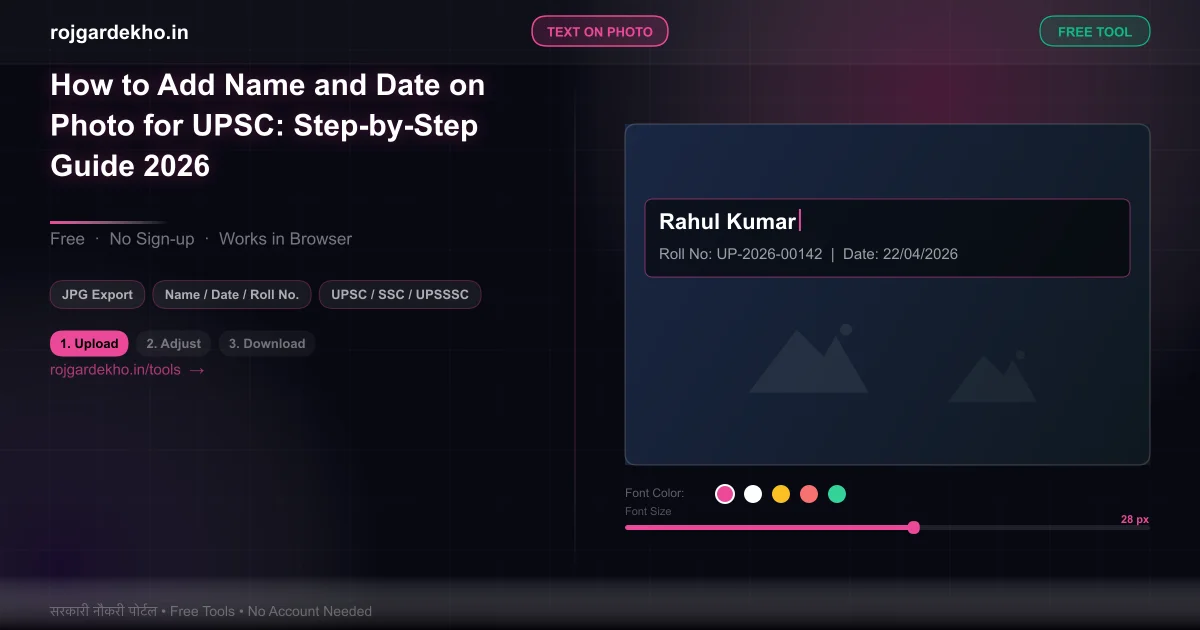
How to Add Name and Date on Photo for UPSC: Complete Guide
UPSC Civil Services is one of the most competitive exams in India — and yet, every year, hundreds of candidates get their DAF (Detailed Application Form) returned because they didn't add their name and date on their photo. This is a fixable mistake. It costs real candidates real time — sometimes weeks — during a period when they should be focusing on interview preparation. This guide tells you exactly what UPSC requires, the correct format, and how to do it in under 5 minutes for free.
👉 Free Text-on-Photo Tool — Add Name & Date for UPSC — type your name and date, position at the bottom, download JPEG — no signup
Why UPSC Requires Name and Date on the Photo
UPSC processes over 10 lakh applications every year for Civil Services alone. At the commission's scale, physical document handling involves printing, sorting, and matching thousands of photos to forms. A photo without identification text can be separated from its form during printing, transit, or filing — and there's no way to re-match it without the text identifier.
The name-and-date requirement also serves as a verification anchor: if the photo was taken recently (within 6 months of the application), the date helps confirm recency. UPSC has included this requirement in its CSE notification consistently since at least 2016. It is not a new rule. Candidates who read notifications carefully encounter it on the very first page of the photograph specifications.
Exact UPSC Photo Requirements (2026)
| Requirement | Specification |
|---|---|
| Dimensions | 550×550 px |
| File size | 20–300 KB |
| Format | JPEG/JPG |
| Background | White or off-white |
| Name text | Candidate's name — at the bottom of the photo |
| Date text | Date photo was clicked — at the bottom of the photo |
| Text position | Inside the photo area (overlaid on the image) — not below it |
| Text colour | Black — clearly visible against white background |
| Date format | DD/MM/YYYY (verify exact format in your year's notification) |
| Photo recency | Taken within the last 6 months |
| Glasses | Not permitted in photo |
| Head covering | Not permitted except for religious/medical reasons |
Always verify these specifications against the official UPSC notification for your specific year. Requirements have been consistent since 2016, but check the notification's photograph section before submitting.
The Correct Format for Name and Date Text
Name: Write your name exactly as it appears on your UPSC application form and admit card. Not a nickname, not initials, not an abbreviated version. Full name as registered. If your name is "Priya Ramesh Sharma" on your application, that's what goes on the photo — not "P.R. Sharma" or "Priya Sharma."
Date: The date the photograph was physically clicked — not the date you're filling the form, not the form submission deadline. If you took the photo on March 15, 2026, write 15/03/2026. If you're using an older photo (within 6 months), write the actual date it was taken.
Position: Both name and date must appear at the bottom of the photo, inside the photo area — meaning the text overlays the photo itself. Many candidates make the mistake of adding a white strip below the photo and writing there. This is wrong. The text must be within the 550×550 px image boundary.
Text colour: Black text on a white or off-white background photo is the correct and most readable combination. If your photo has a very light background, black text will be clearly legible. Do not use white, grey, or coloured text.
Font: Any clear, simple sans-serif font works — Arial, Helvetica, Roboto, or any clean modern font. Do not use decorative, cursive, or script fonts. The text needs to be readable when the photo is printed at 2×2 inches (approximately 5×5 cm) — a typical passport photo print size.
Text size: 14–18 px in the digital file is appropriate for a 550×550 px photo. At this size, the text is legible when printed at passport photo dimensions. Smaller than 12 px and the text becomes unreadable in print. Larger than 22 px and the text dominates the bottom of the photo and covers part of your face/shoulders.
Step-by-Step: Add Text Using Free Tool
These steps use the free tool at rojgardekho.in/tools/text-on-photo. No account. No watermark.
Step 1: Upload your photo. Click "Upload Photo." Your photo should already be 550×550 px, JPEG, white background. If you still need to resize it, use the Photo Resizer first and come back.
Step 2: Edit the name text layer. The tool shows a default text layer at the bottom of the photo. Double-click on it and type your full name exactly as it appears on your application. Set font to Arial or Roboto, weight 500–600 (medium — not too bold, not too light). Size: 16 px.
Step 3: Add a second text layer for the date. Click "Add Text Layer." Type your date in DD/MM/YYYY format. Position it directly below your name at the bottom. Set the same font, size 14 px.
Step 4: Check position. Both text lines should sit in the bottom strip of the photo — below your shoulders, above the edge. They should not overlap your face or upper chest. The text should have a few pixels of white margin from the very bottom edge of the photo.
Step 5: Set text colour to black. Ensure colour is #000000 (pure black). This gives maximum contrast on a white background photo.
Step 6: Check readability at print size. In the tool's preview, zoom out until the photo looks thumbnail-sized — about 2×2 cm on screen. At that zoom level, your name and date should still be legible. If the text vanishes, increase font size.
Step 7: Download as JPEG. Click "Download as JPG." The output file is your upload-ready UPSC photo with name and date correctly positioned inside the image.
👉 Need to Resize to 550×550 px First? Complete UPSC Photo Size Guide — UPSC needs 550×550 px, 20–300 KB, white background — resize before adding text
What No Other Site Tells You
The DAF photo and the initial application photo are used at different stages. The Prelims application photo and the DAF photo may have slightly different requirements — UPSC updates these between its forms. Many candidates prepare their DAF photo immediately after Prelims results, which is the right instinct. But read the DAF instructions specifically when you fill it — don't assume the Prelims photo spec applies identically to the DAF.
If your DAF gets returned, you have a window to resubmit — but it's short. UPSC returns defective DAFs with a specific deficiency noted. Candidates typically get 7–14 days to correct and resubmit. But many candidates don't check their UPSC profile regularly after submission and miss this window entirely. During the months between Prelims results and DAF deadline, check your UPSC candidate portal at least once every 3 days.
UPSC doesn't specify exact font size — but "legible at print size" is the practical standard. Verification officers review printed DAF forms, not the digital files. If your name text is 8 px in the digital file, it prints as a blur on the physical document. Size 14–18 px in the 550×550 px digital photo translates to readable text at standard photo print sizes. This is the practical range that passes review.
The date on the photo is when the photo was clicked — not when you filled the form. This is the single most common text mistake. If you took the photo two weeks before filling the form, write the date you took the photo. If you're reusing a 5-month-old photo (within the 6-month window), write that original photo date — not today's date.
Text outside the photo area is wrong. Some candidates add a white strip or border below the photo and write the name and date there. This creates a non-square image (the 550×550 px becomes 550×580 px with the strip) and the text is outside the image boundary. UPSC's requirement is text inside the photo. The tool handles this correctly by default.
Does Any Other Exam Need Text on Photos?
UPSC CSE is the primary exam with this requirement, and it's been the standard for years. Most other exams — SSC, IBPS, SBI, Railway — do not require text on the uploaded photo. The photo itself just needs correct dimensions, KB, and background.
Some state PSC exams have adopted a similar requirement. MPSC (Maharashtra) and UPPSC have in some notification cycles asked for name and date. OPSC (Odisha) has requested it in the past. If you're applying to a state PSC, check the photograph specifications section of the official notification carefully.
NDA and CDS notifications do not currently require text on photos. The Service Selection Board conducts its own rigorous identity verification at later stages.
Frequently Asked Questions
Q: What happens if I upload a photo without name/date in UPSC DAF?
Your DAF gets returned as defective with the specific deficiency noted. You receive a correction window — typically 7–14 days. If you miss that window, you cannot participate in the interview stage. The returned DAF is not an automatic disqualification from UPSC permanently, but it costs you that year's cycle if you miss the resubmission deadline.
Q: Does the name on the photo need to match exactly with my application form?
Yes. If your application says "Rajat Kumar Verma" and your photo says "Rajat Verma," it's a discrepancy. Verification officers cross-check photo name against form name. Initials, abbreviated middle names, or spelling variations can all raise a flag. Use the exact name from your UPSC application.
Q: Should the date be the photo-taken date or the form submission date?
The date the photo was physically clicked — not the form submission date, not today. This is stated clearly in UPSC's notification: "the name of the candidate and date of taking the photograph." Write the actual day you stood in front of the camera.
Q: Can I handwrite the name and date on the physical photo instead?
No. UPSC's requirement is for a digital file upload. Handwriting on a printed photo and then scanning it creates quality loss and the handwritten text often scans poorly at small photo sizes. The requirement is for digitally added text in the uploaded image file. Use the tool.
Q: What font and size should I use for the name text?
Arial, Roboto, or any clean sans-serif. Font weight 500–600 (medium). Size 15–18 px in a 550×550 px file. Black colour. No decorative fonts — the text needs to be machine-readable as well as human-readable at small print sizes.
Q: My name is very long — can I use initials on the photo?
No. Use your full name as it appears on your UPSC application. If your name is very long, use a smaller font size (12–13 px) or adjust line spacing to make it fit in a single line at the bottom. Do not use initials or abbreviate your name — name mismatch is a grounds for DAF return.
Q: Is name and date required for UPSC Prelims application or only DAF?
Both. The Prelims application (online) also asks for a photo with name and date at the bottom. Many candidates read this requirement carefully for the DAF stage (after hearing about DAF returns) but skip it at the Prelims stage when they're in a hurry. Apply the same standard for both.
👉 Add Name & Date to Your UPSC Photo — Free, No Signup — upload 550×550 px photo, add text at bottom, download JPEG — under 5 minutes